Back up Codex accounts
Export recognized local sign-ins and import them when you need to restore an account.
Use this when you want to preserve official Codex sign-ins for later switching.
Steps
- In Codex Client, confirm that the manager is linked to the Codex installation where you signed in. For multiple installations, first choose the linked installation
- Open Codex Accounts and check Official accounts. Use Sync usage to refresh account and sign-in information when needed
- Select Export accounts, choose the accounts, then export to a local file. The export button on an individual row backs up that account
- To restore, choose Import accounts, select the backup file, and confirm the import. Importing saves accounts but does not switch the active account
The manager can recognize the linked Codex's current sign-in and recoverable accounts in its credential store or configuration snapshots. Having signed in previously does not guarantee recovery. If credentials were cleared, expired, or never saved, sign in again in the corresponding Codex installation.
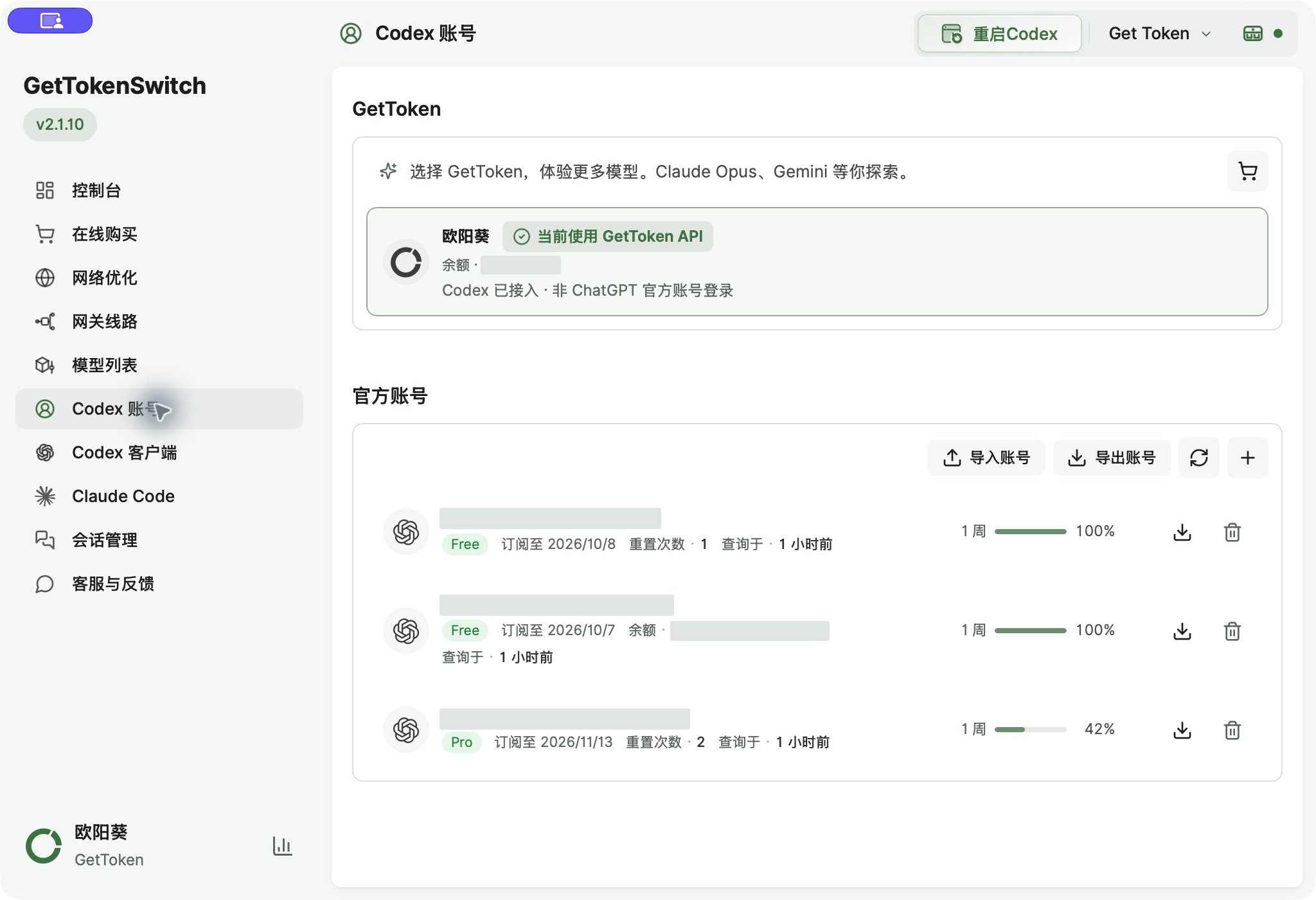
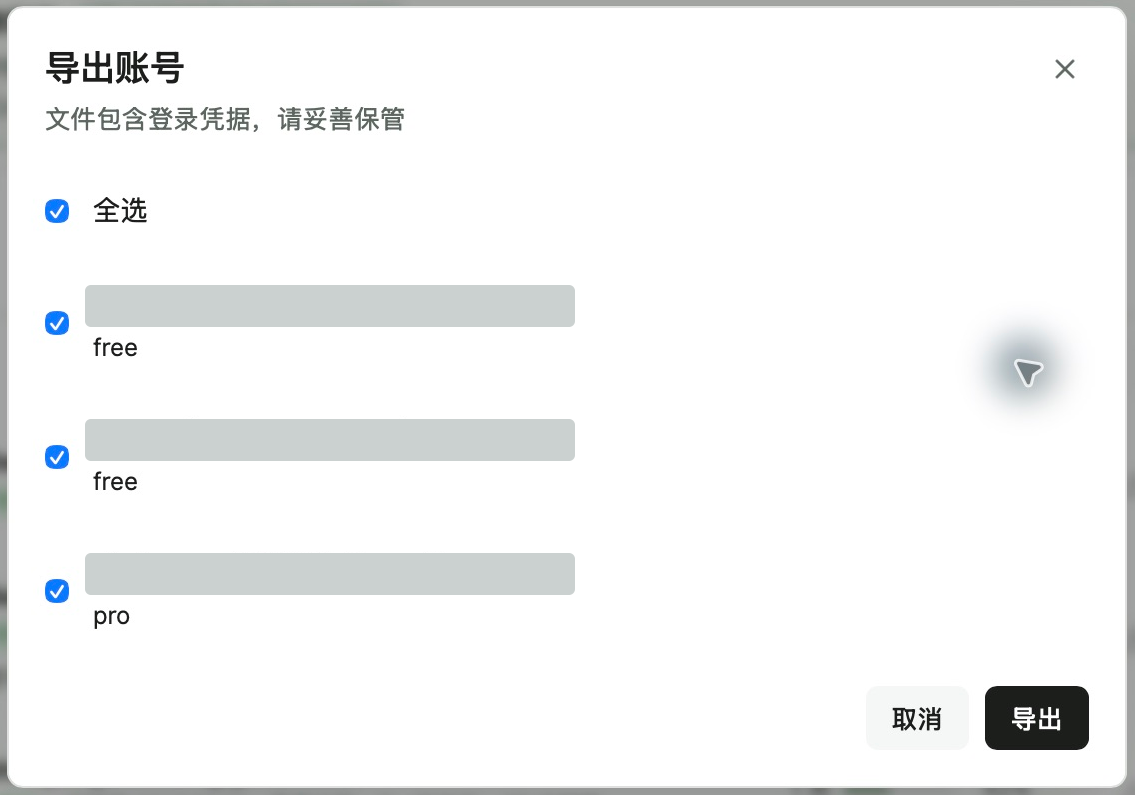
This backs up account credentials, not project files or your entire chat history.
Troubleshooting
Why did importing a backup not change my active account?
Importing saves accounts to the list. Select the target account and confirm the switch, save ongoing work, and restart the linked Codex when prompted. Expired credentials require another official sign-in.