GetTokenSwitch setup guide
Install GetTokenSwitch, connect Codex or Claude Code, and start your first project session.
Install, connect, and manage Codex and Claude Code with GetTokenSwitch. Download and sign in first, then follow a dedicated illustrated guide for each feature.
Download and install GetTokenSwitch
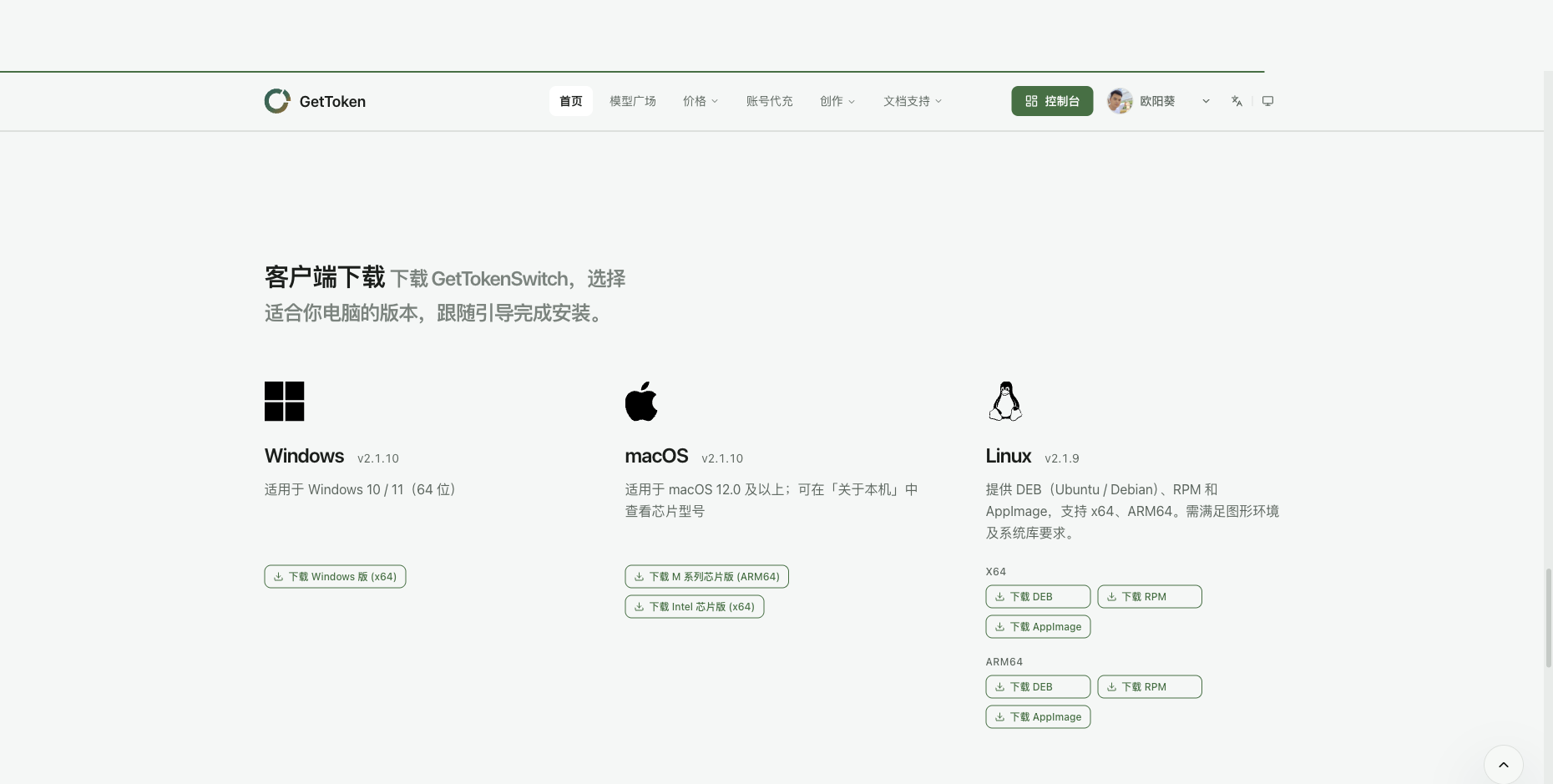
Open software downloads and choose the installer for your computer.
| Computer | Installer and installation |
|---|---|
| Windows 10 / 11, 64-bit | Download the Windows installer and follow its prompts |
| Mac with an M-series chip | Open the Apple Silicon / ARM64 DMG and drag the app to Applications |
| Intel Mac | Open the Intel / x64 DMG and drag the app to Applications |
| Linux | Choose DEB, RPM, or AppImage for your distribution and architecture; the native desktop enhancement instructions below focus on Windows and macOS |
On a Mac, check your chip in the Apple menu's About This Mac. Platform versions can differ; use the current package shown on the download page.
Launch GetTokenSwitch after installation. It manages configuration and startup; conversations happen in Codex or Claude.
Complete setup and sign in
- Choose the client you want to use in the setup guide. For Codex, select Install Codex if it is missing; an existing installation is shown as installed
- Select Sign in to GetToken, complete the login flow, and return to the manager
- Confirm your current username at the lower left or on the client page, then check the loaded platforms and models in Model List
- Launch the client from Codex Client or Claude Code and follow any apply, restart or initial setup prompts. Normal setup does not require manually creating, pasting or selecting an API Key
GetToken, official Codex accounts, and official Claude accounts are separate identities. GetToken API mode uses your GetToken quota; official-account mode uses the corresponding official service. Check available quota and subscription status in the console.
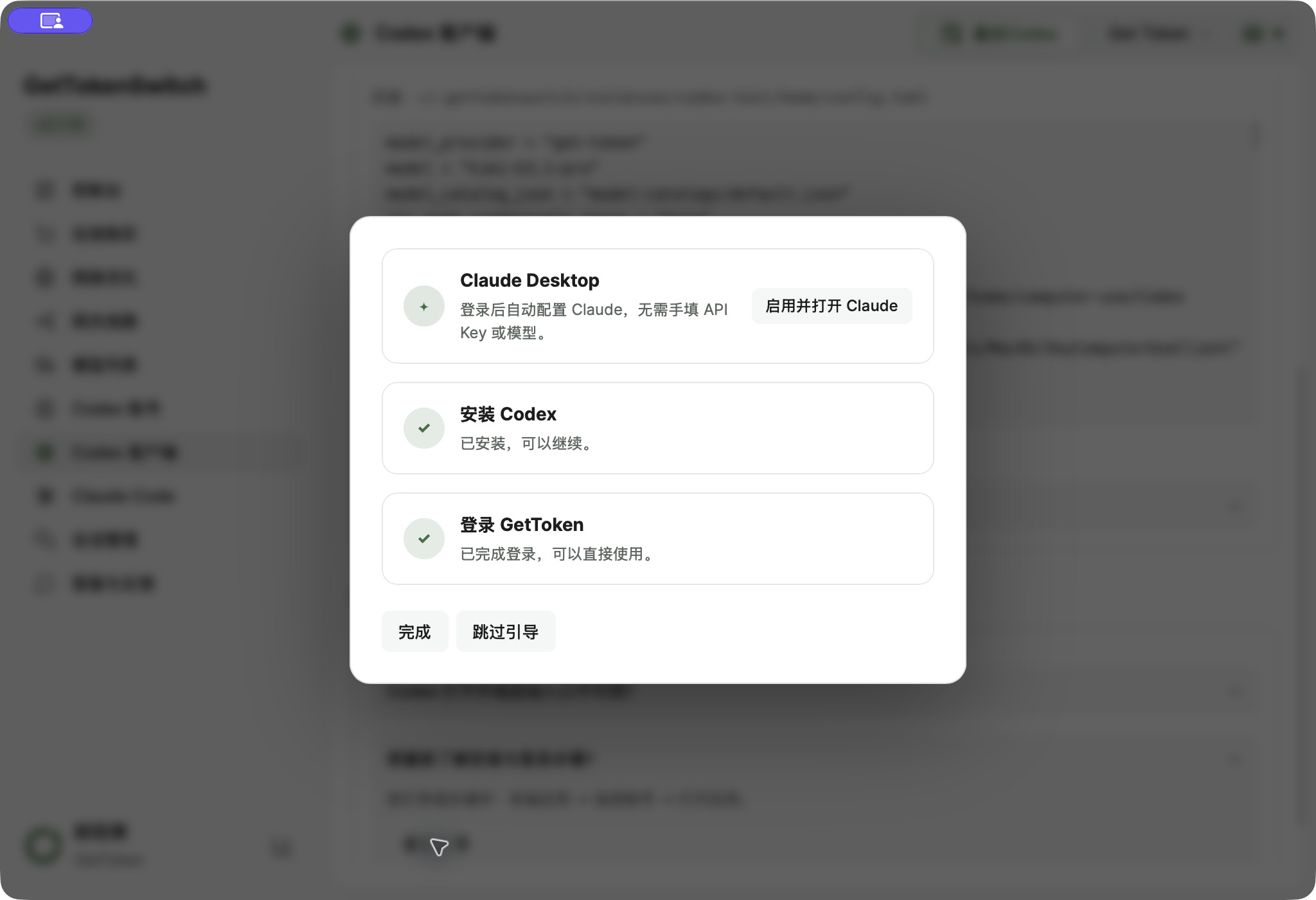
To reopen setup, go to Codex Client, expand the FAQ about installation and sign-in, and choose View guide. Claude instructions are under Claude Code → More actions → Guide.
Continue by feature
Each guide includes screenshots beside its steps. Navigation, usernames, states and buttons remain visible; only email addresses or balance amounts are locally redacted. Windows examples are identified in their captions.
| Feature | Screenshots |
|---|---|
| Codex sign-in and setup | Sign-in guide, current user and models, launch action, restart prompt, model picker |
| Claude Code sign-in and setup | Current user and launch action, guide, permissions, workspace, model picker, target clients |
| Back up Codex accounts | Export entry in the account list and account selection dialog |
| Switch Codex accounts | Codex installation path, account list, Apply and restart confirmation |
| Add a third-party API | Provider form with endpoint, API Key and model settings |
| Gateway routes and proxies | Proxy entry, route list and connection-check results |
| Network optimization and free traffic | Daily free traffic, subscription format and copy entry |
Complete a small project task
Use this sequence with either Codex or Claude Code. Give a clear goal and check the outcome before moving on.
| Stage | Example instruction | What to check |
|---|---|---|
| Understand | Read the project and explain how to run it. Do not edit files | The selected project is correct |
| Plan | Plan a dark-mode toggle and list the files you would change | The scope matches your goal |
| Implement | Follow the plan using the existing components and style | File and command permission prompts |
| Check | Run the relevant existing checks and report passes and failures | Actual output and the resulting UI |
| Handoff | Summarize changes, startup steps, remaining issues, and a suggested commit message | Review the diff before deciding to commit or publish |
For a first experiment, use an empty folder and ask for a single HTML to-do page. Start with a small visible result, then expand the scope.
Models and maintenance
- Change models: use the selector in Codex or Claude Code and check the displayed model afterward
- Add your own API: follow the third-party API guide; this is not part of normal GetToken sign-in
- Update clients: use Codex Client for Codex, or Claude's More actions menu for desktop and CLI
- Review usage: check API quota in the console, network data in Network Optimization, and official subscription quota in the respective account
Troubleshooting
Which application should I open after installing?
Open GetTokenSwitch first, finish configuration, then launch Codex or Claude from the manager. Opening the official app alone does not establish that enhancements are loaded.
Do I still need to edit configuration files manually?
Usually not after applying settings through the manager. Check the active connection, targets, and provider test results before mixing in older manual settings.