Codex sign-in and setup
Sign in to GetToken, confirm your user, and launch Codex.
Sign in to GetToken inside GetTokenSwitch, confirm your user is shown, then launch Codex. Normal setup does not require manually creating, pasting or selecting an API Key. Use the third-party API guide when connecting your own provider.
Step 1: Sign in to GetToken in the manager
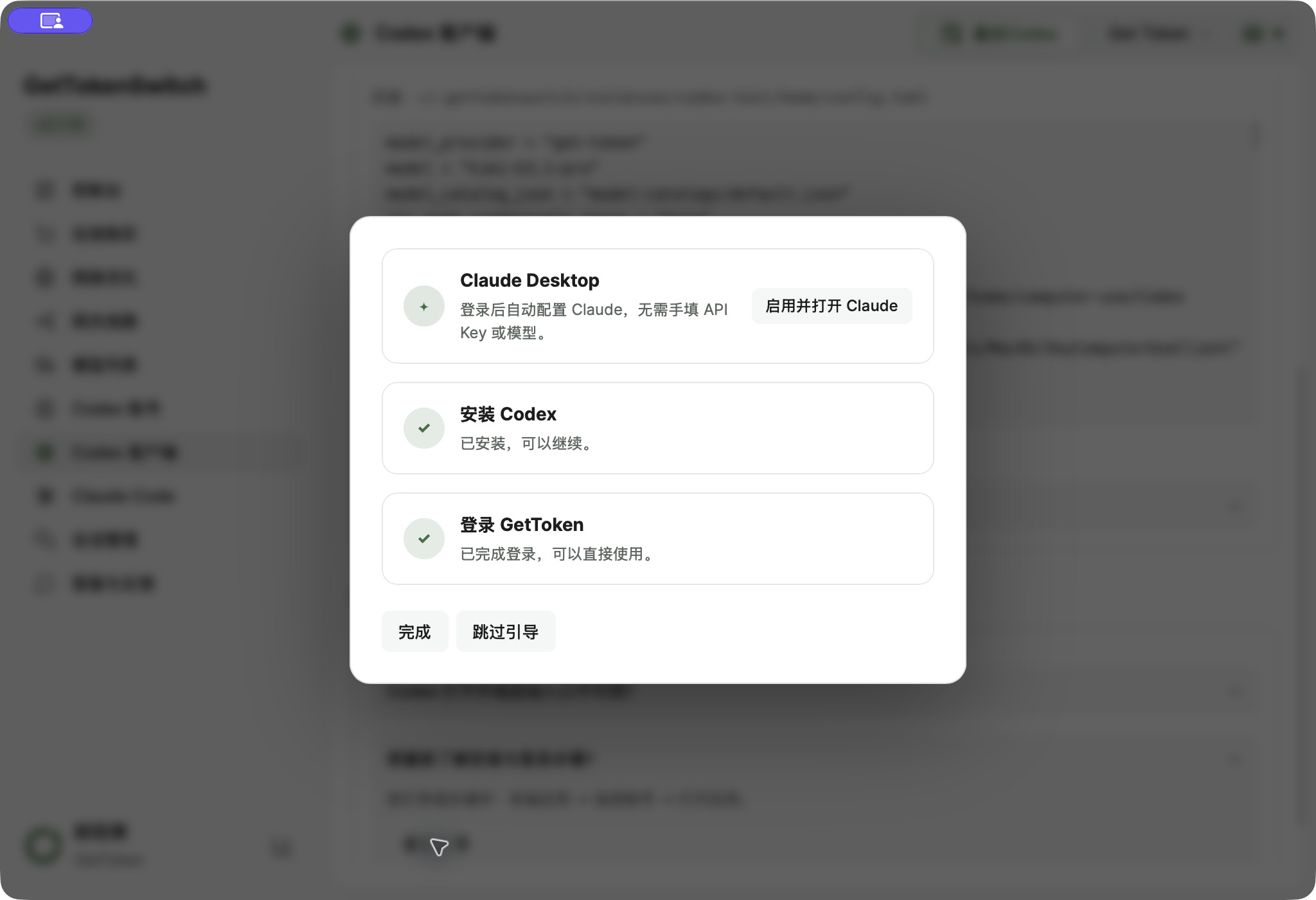
- Download and open GetTokenSwitch. If Codex is missing, select Install Codex in the initial guide
- Select Sign in to GetToken, complete the account sign-in in the window that opens, then return to the manager
- Wait for user information and models to load. Connection settings are prepared automatically; follow any apply or restart prompt as described below
Step 2: Confirm that you are signed in
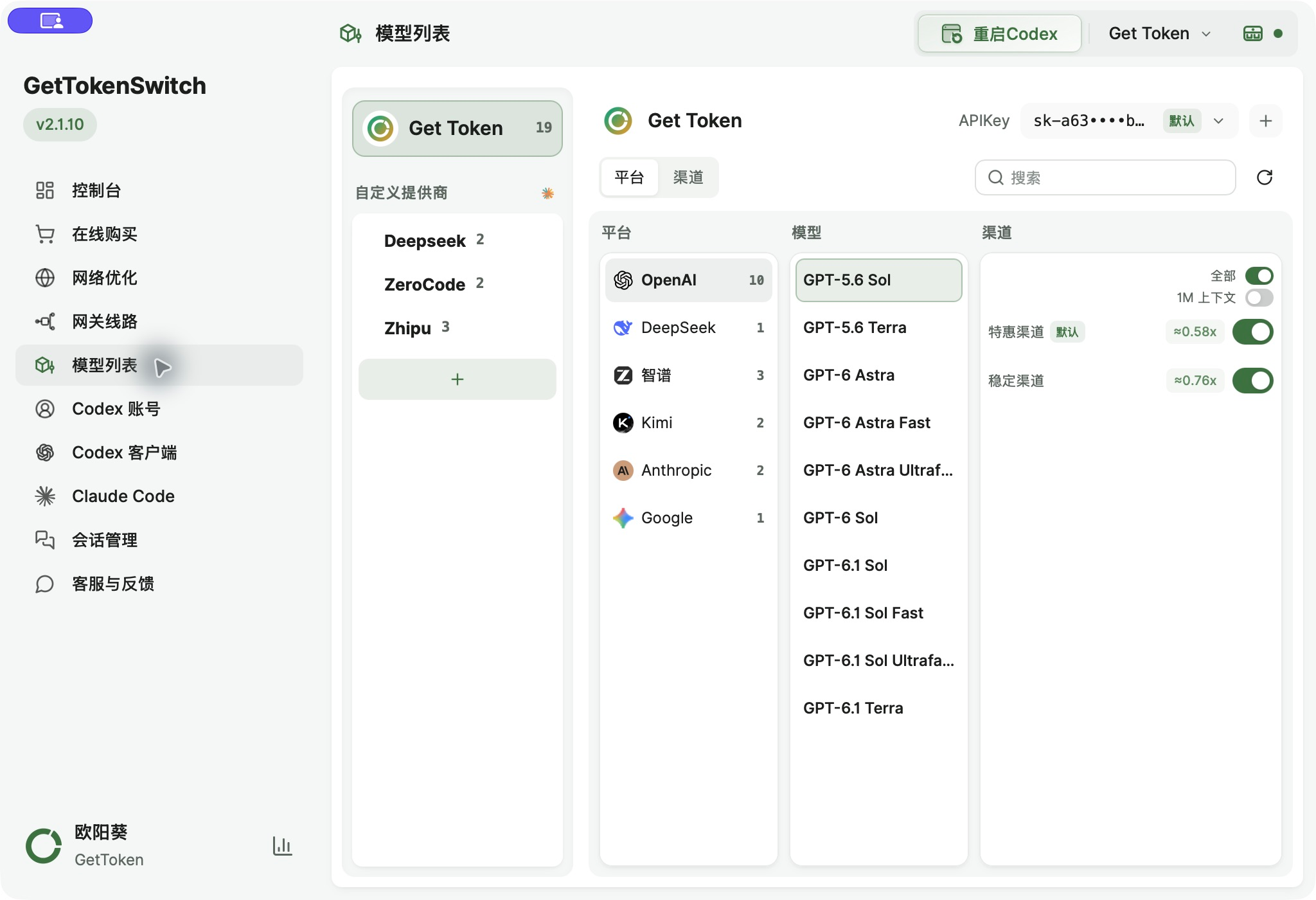
Open Codex Client and look for your username and GetToken model count under installation and updates. Your current user also appears at the lower left. Open Model List to see GetToken platforms, models and channels.
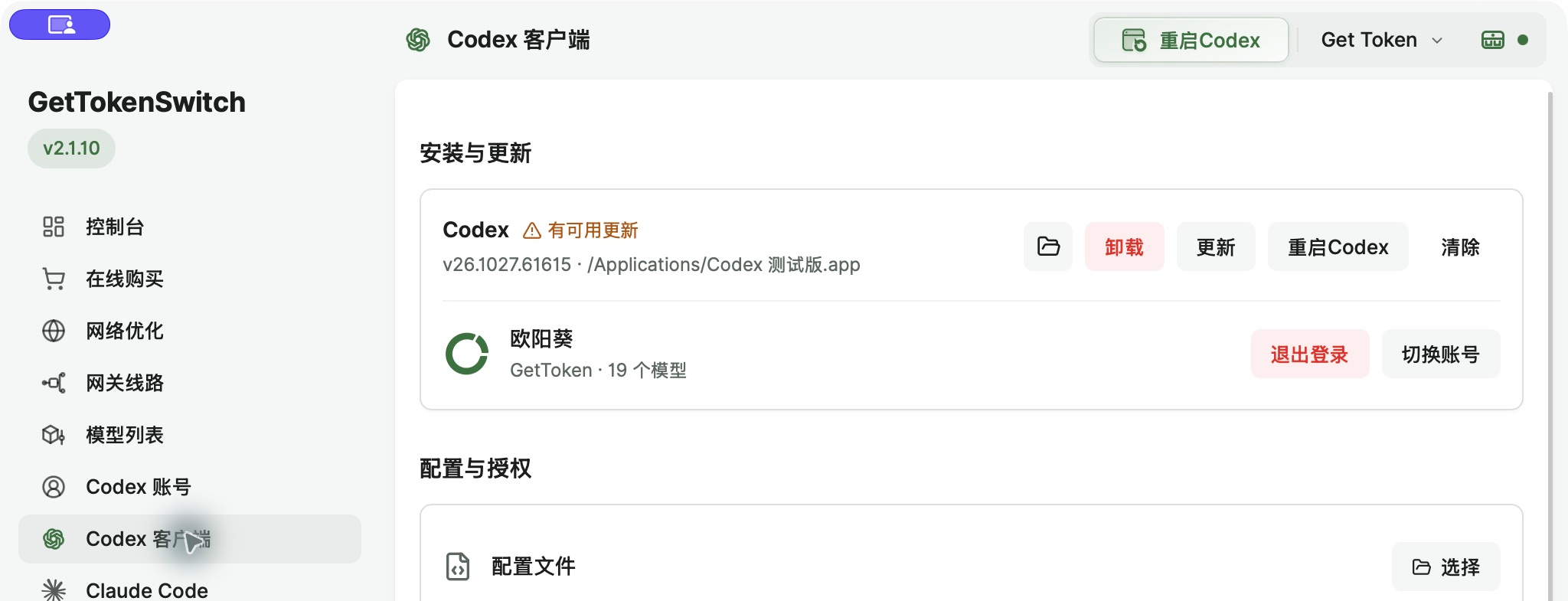
Being signed in and applying client settings are separate steps. If a pending-settings prompt remains after your username appears, continue with the next step.
Step 3: Launch Codex and handle prompts
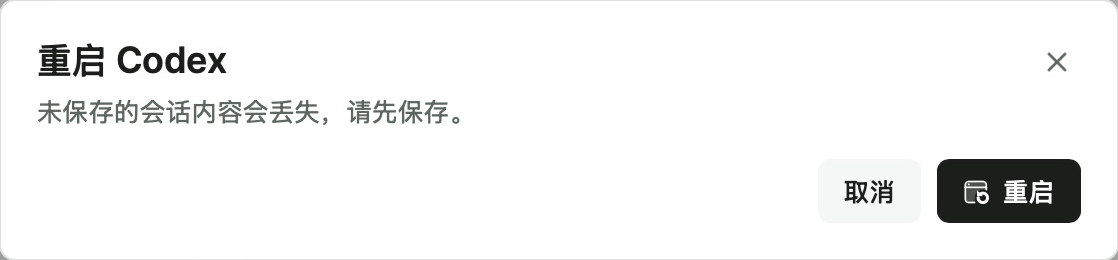
Use the launch action in Codex Client, shown as Restart Codex in this capture. With multiple installations, first select the intended client using the folder button beside its installation details. See linked installation.
| Prompt | What to do |
|---|---|
| Apply immediately and restart Codex, or pending settings | Check the target client, save ongoing work, then apply the settings prepared after sign-in |
| Restart Codex with a save-work reminder | Save unsent content before confirming Restart; cancel if you are not ready |
| Both Restart only and Apply and restart are offered | Choose Apply and restart to use the new settings; Restart only keeps the existing settings |
| Codex asks for a project folder or access | Choose your intended project and approve only the directory and access you recognize |
In Codex, create a chat and select a project. Use the model selector near the composer to choose a model and an available channel.
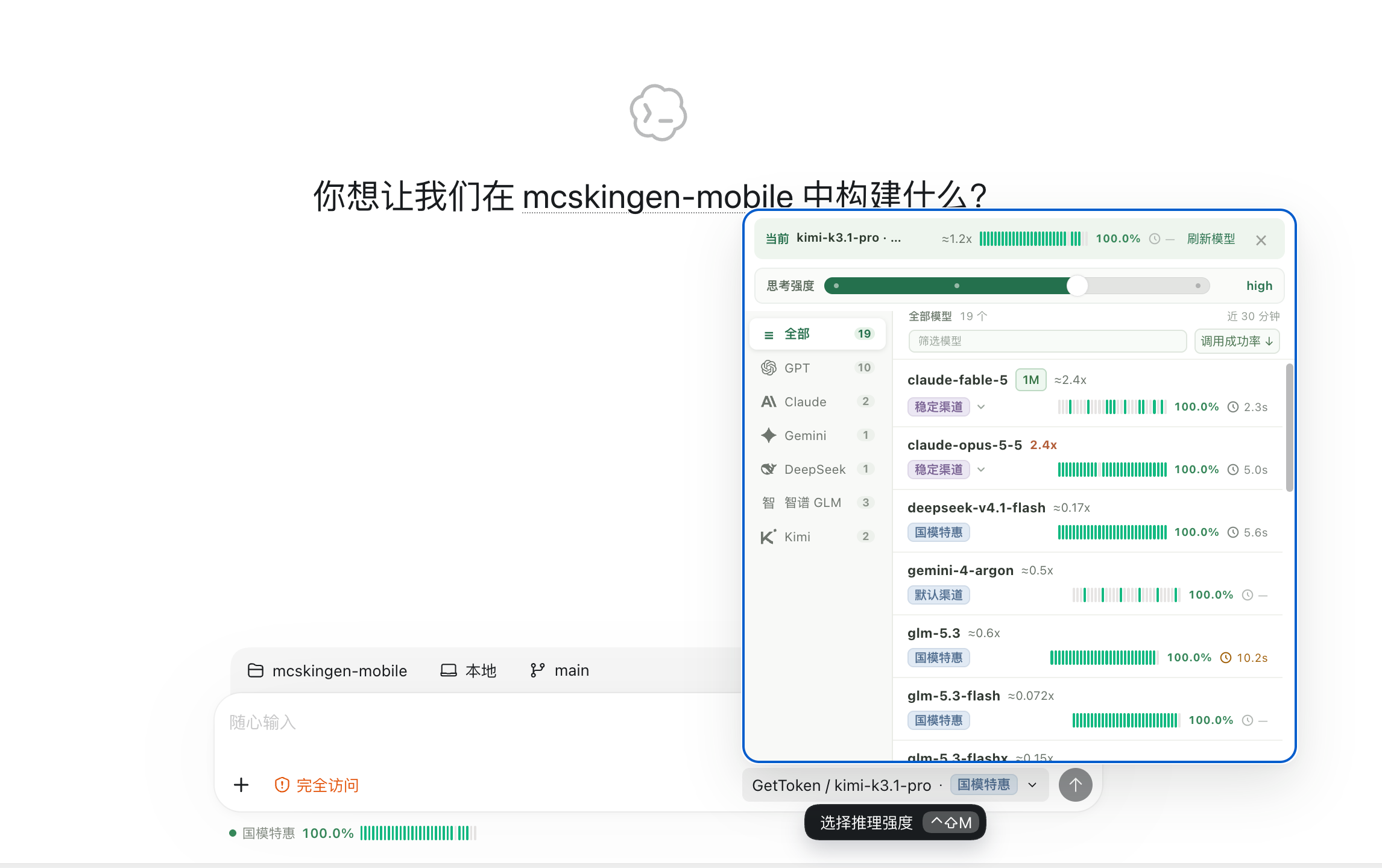
Start with a simple message:
Do not use tools or modify files. What is 17 + 28?After a normal reply, ask it to read your project or complete a task. Continue launching Codex through GetTokenSwitch for later sessions.
Troubleshooting
Do I need to create a key on the website first?
No. Sign in to GetToken in GetTokenSwitch, wait for your user information, and launch the client as prompted. Entering a provider's API Key belongs to third-party API setup.
The login window closed, but my user is not shown
Wait for the status to refresh. If Sign in to GetToken is still shown, reopen it and complete sign-in. Closing the window alone does not establish success.
My user is shown, but models are missing in Codex
Check for pending settings, apply them and reopen the client. Refresh the manager's catalog if it has not loaded. For request failures, check available quota or try another gateway route. Creating a key is not a normal setup requirement.
I want to use an existing official Codex account
See account backups and account switching. The GetToken flow above does not require adding an official Codex account first.