Gateway routes and proxies
Compare routes and try another API proxy when model server connections are slow.
When connecting to GetToken model servers is slow, times out, or becomes unstable, compare routes in Gateway Routes. This feature concerns model API requests.
Steps
- Open the Routes area and choose Check all to compare connection time, response time, and status
- Try another available route, such as the backup or global route, and check the current-route marker
- When needed, select a proxy under Proxy acceleration. The current version offers no proxy, a Hong Kong proxy, and a US proxy; follow the options in your installed version
- Proxy acceleration requires gateway mode. Follow any mode-change prompt, recheck routes after changing the proxy, then send a new message to compare results
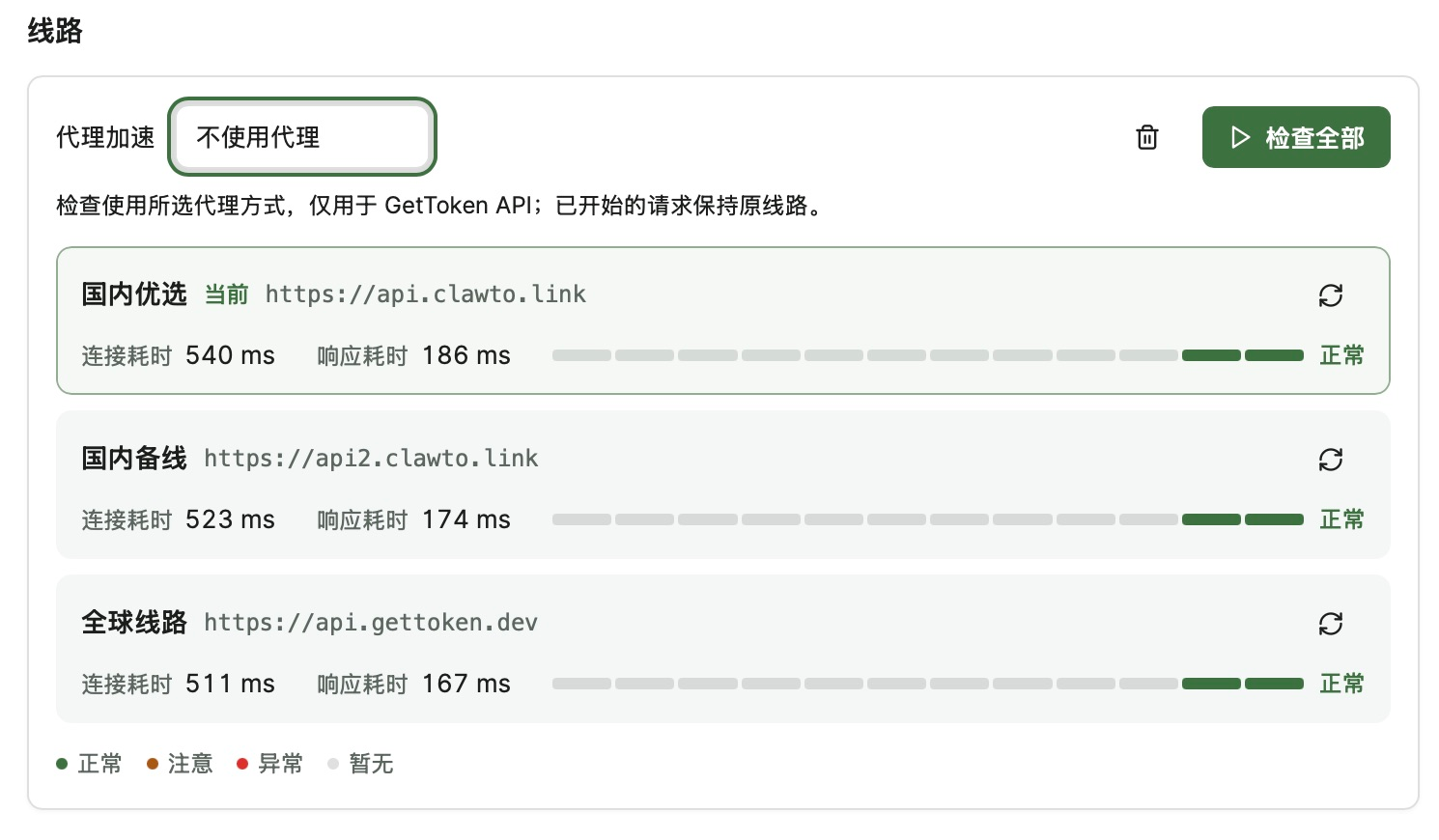
This proxy selection applies only to GetToken API traffic. Requests already started retain their original route. It does not automatically proxy browsers or other applications. This page switches built-in routes and proxies; add your own model API endpoint as a provider in Model List.
To return to direct mode, first select no proxy, then change the connection mode as needed. A successful route check is not a substitute for an actual model request.
Troubleshooting
Should I use Gateway Routes or Network Optimization?
Use Gateway Routes to change the route or proxy for slow GetToken model API connections. Use Network Optimization to claim traffic and import a subscription into a local external client for browsers or other applications. Configure them separately; success in one does not mean the other is enabled.