Switch Codex accounts
Link the intended Codex installation before detecting and switching its accounts.
Use this for multiple official accounts or multiple Codex installations. Account detection and switching target the Codex linked to the manager, not every Codex installation on the computer.
Steps
- Open Codex Client in GetTokenSwitch
- Under installation and updates, click the folder button to browse and select the Codex installation
- On macOS, select the intended
.app; on Windows, select its installation directory. This is not your project folder or the separate configuration-file picker below - Wait for detection, verify the displayed application path, then open Codex Accounts and refresh the account information
- Click the target account row and confirm the switch. Save ongoing work before restarting the linked Codex, then check its active account

Select an account and confirm
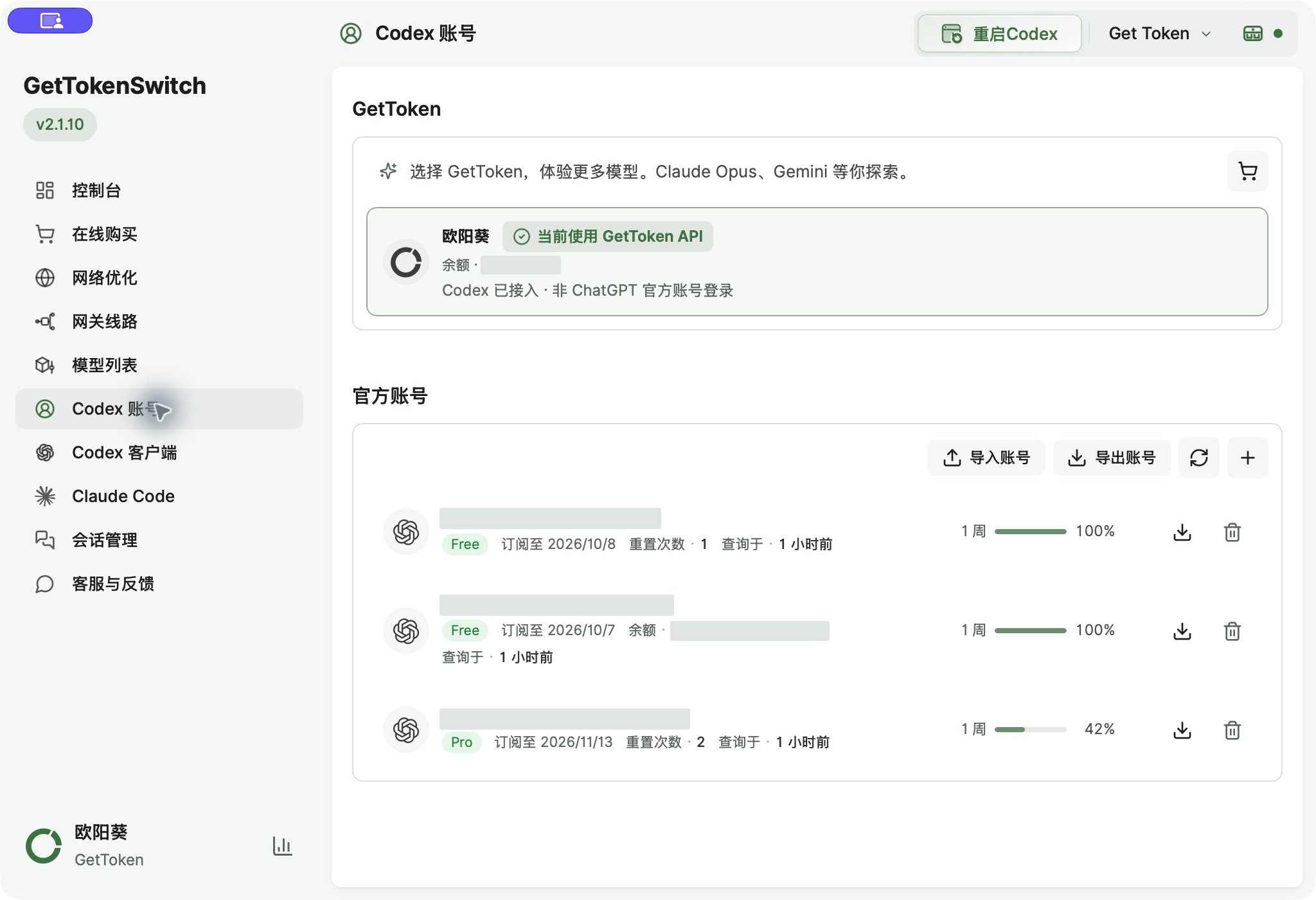

If the account is missing, use Add account to open the linked Codex, complete the official sign-in there, then return. You do not need to delete backups or sign out of another account just to detect a different installation.
Troubleshooting
Why is an account I used on this computer missing?
Check the installation path in Codex Client. With multiple installations, choose the intended one using the folder button, then refresh Codex Accounts. Sign in again in that Codex if credentials were cleared or expired. The manager does not scan and switch every independent installation.
Why did importing a backup not change my active account?
Importing saves accounts to the list. Select the target account and confirm the switch, save ongoing work, and restart the linked Codex when prompted. Expired credentials require another official sign-in.