Claude Code sign-in and setup
Sign in to GetToken, confirm connection status, and launch Claude through its setup prompts.
Sign in to GetToken in GetTokenSwitch, confirm your current user and connection status, then launch Claude. Normal setup does not require manually entering an API Key. The manager prepares the connection settings.
Step 1: Sign in to GetToken
- Open GetTokenSwitch and select Sign in to GetToken in the guide or login entry. Complete sign-in and return to the manager
- If already signed in, continue with the same account; there is no separate account or manual key setup required for Claude
- If Claude is missing, install it from the Claude Code page before launching
See the setup overview for installation and sign-in.
Step 2: Confirm your user and connection status
Open Claude Code in the sidebar. Check your current username in the GetToken section or at the lower left. After connection setup, the page shows the active GetToken API indicator and separate desktop and CLI connection states.
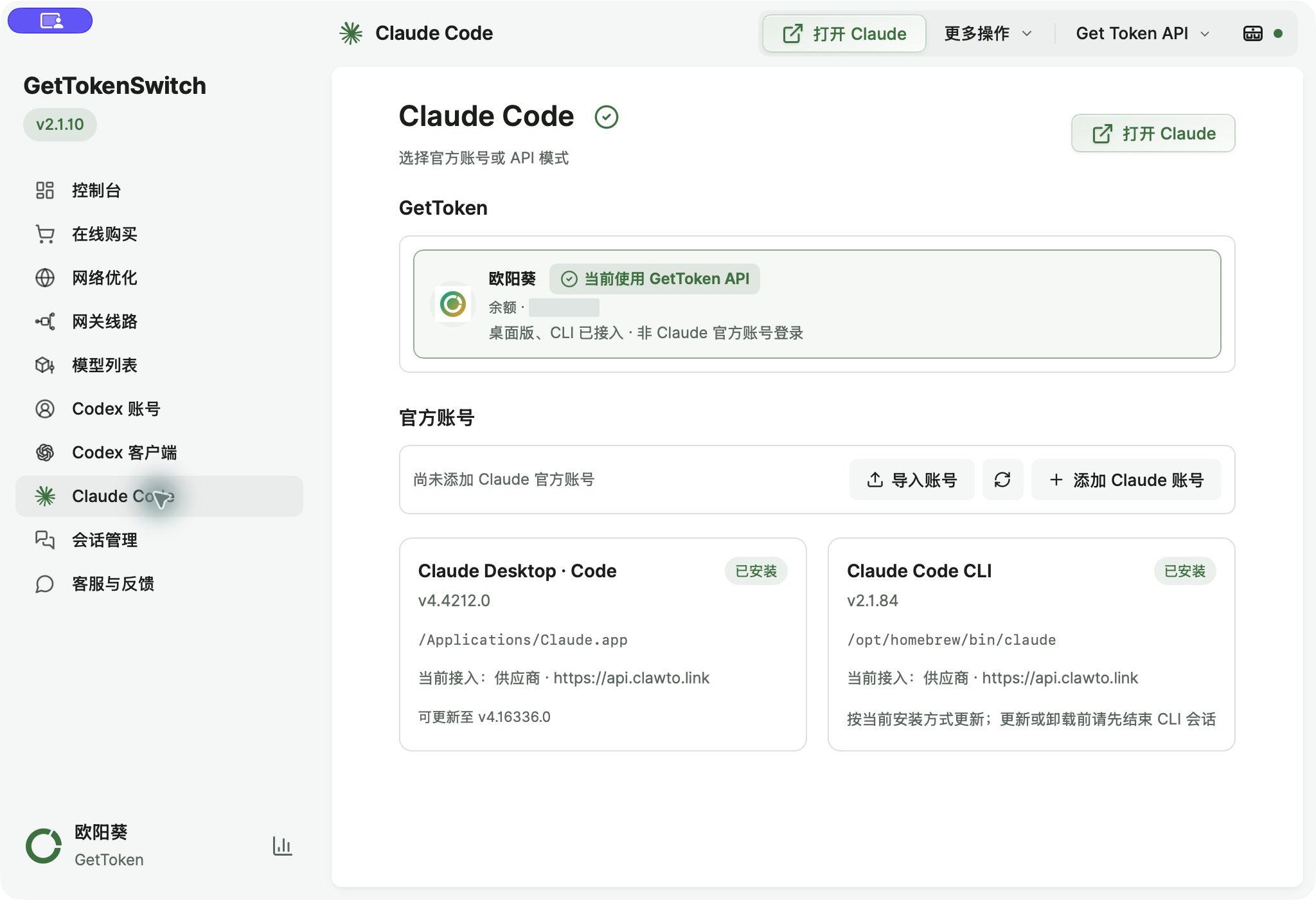
Step 3: Launch Claude and handle prompts
Install and connect Claude
- Select Claude Code in the manager and check the Claude Desktop · Code installation status
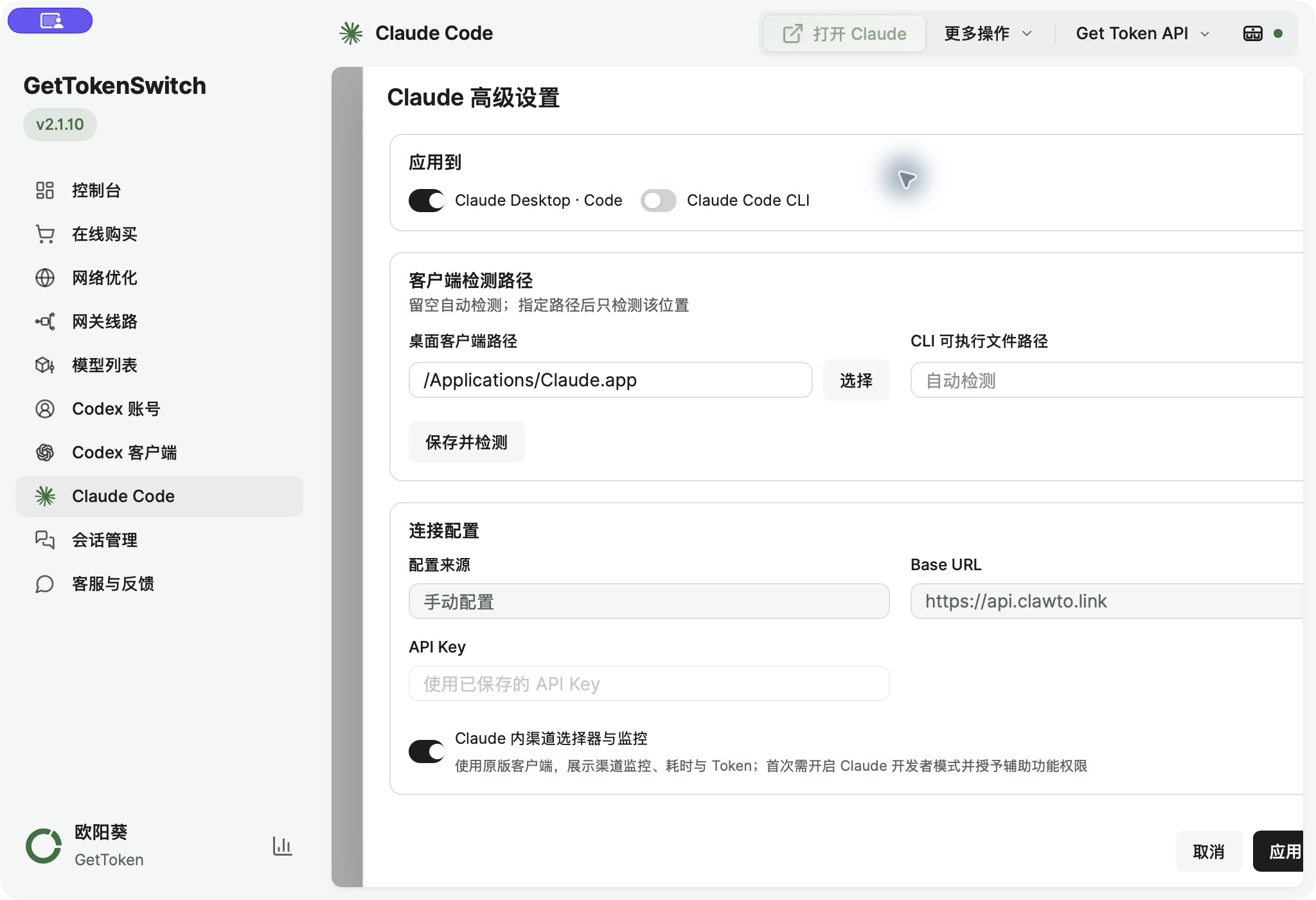
- Install it if missing. If an existing app is not detected, set its path under More actions → Advanced settings, then select Save and detect
- Select Enable and open Claude, or the primary action currently shown. Setup reuses your signed-in GetToken account and prepares settings automatically, prompting if application or restart confirmation is needed
- If Apply to Claude or a restart confirmation appears, check the target client and save ongoing work before confirming. Continue setup resumes any unfinished steps
- Once enabled, the primary action may read Open Claude. Use Reload enhancements under More actions when the UI needs to be restored
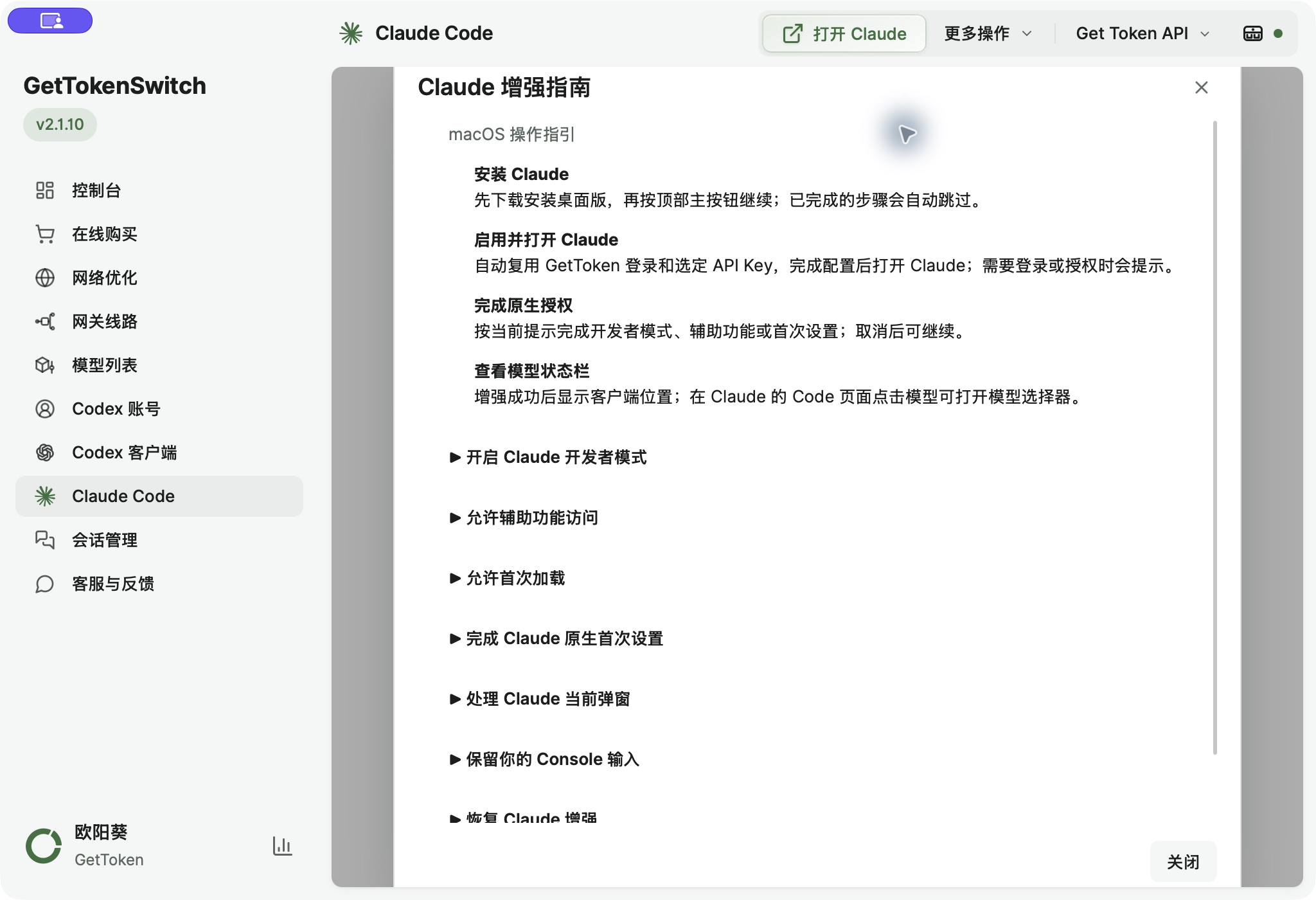
Complete native setup prompts
The desktop model selector and monitoring require the steps shown by the manager. Read and confirm these prompts yourself. Do not bypass an organization's restrictions.
| Prompt | What to do |
|---|---|
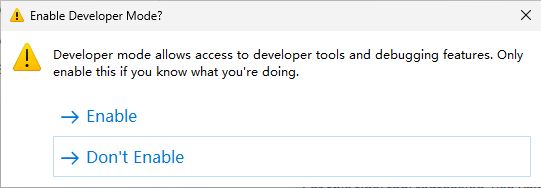
| Enable Developer Mode | In Claude, open Help → Troubleshooting → Enable Developer Mode, read the confirmation, then return to the manager |
| Accessibility permission on macOS | Open System Settings → Privacy & Security → Accessibility and allow the installed GetTokenSwitch app, then return |
| Allow first load | In Claude Developer Tools, select Console and manually type allow pasting as instructed, then press Return or Enter and retry enhancements. Do not paste unrelated code |
| Complete native setup or handle an open dialog | Return to Claude's main window and read the Code setup prompts; minimize developer tools if they cover it |
| Preserve Console input | Save or handle any unsent input before retrying |
| Continue setup or Retry enhancements | Complete the requested step, then continue. You can resume after cancelling or closing the guide |
On Windows, developer tools may briefly appear during initial loading or a cold start. The manager closes the tools window it opened after loading.
Select Code and a project folder
Choose the Code tab in Claude rather than Cowork or ordinary chat. Read any first-run notices and select your project folder. When Trust this workspace? appears, check the directory first.
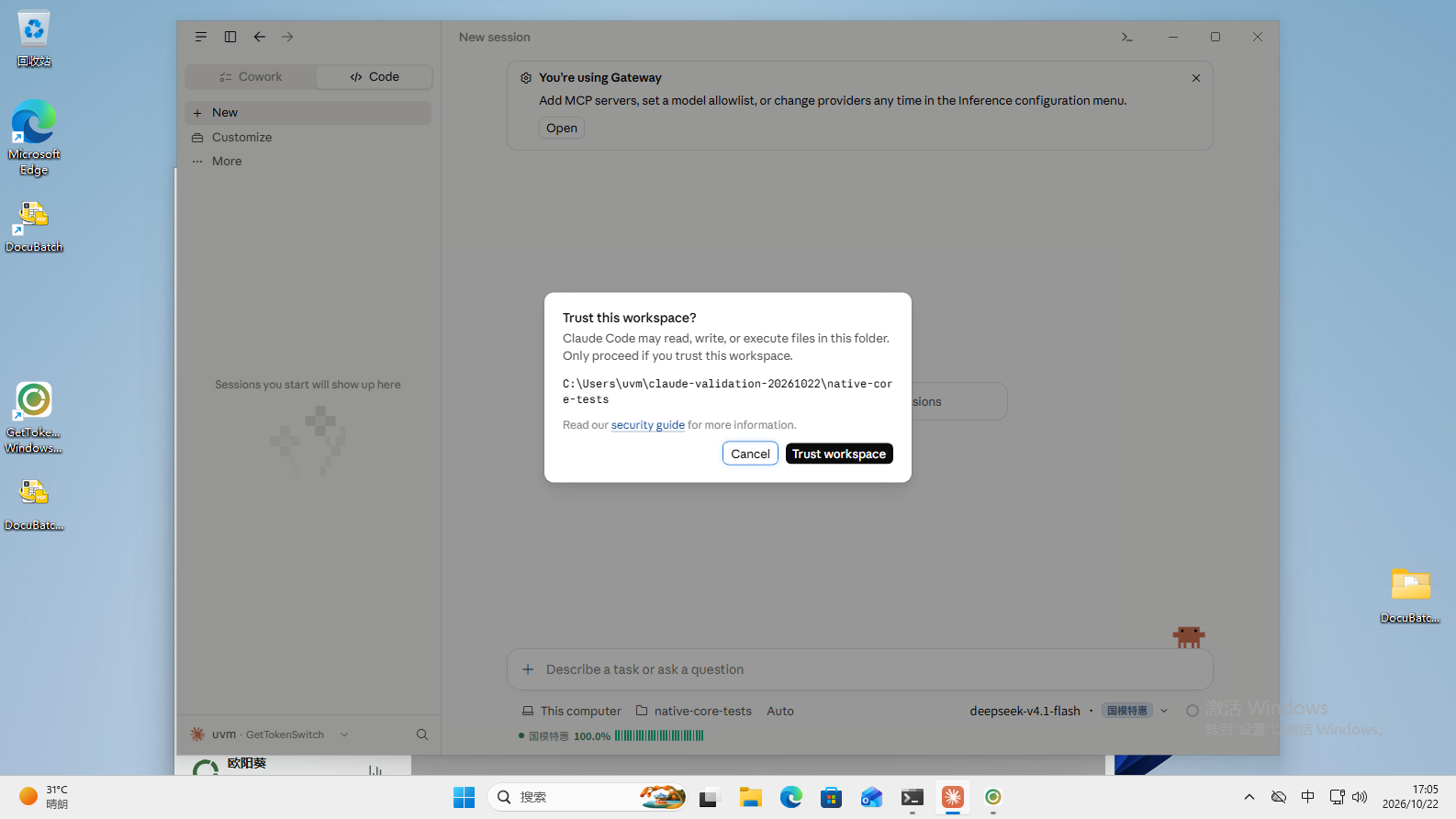
Once enhancements are ready, use the model or channel entry near the Code composer to choose an available model. Send a simple test prompt:
Do not use tools or change files. What is 17 + 28?Keep GetTokenSwitch running while using desktop enhancements.
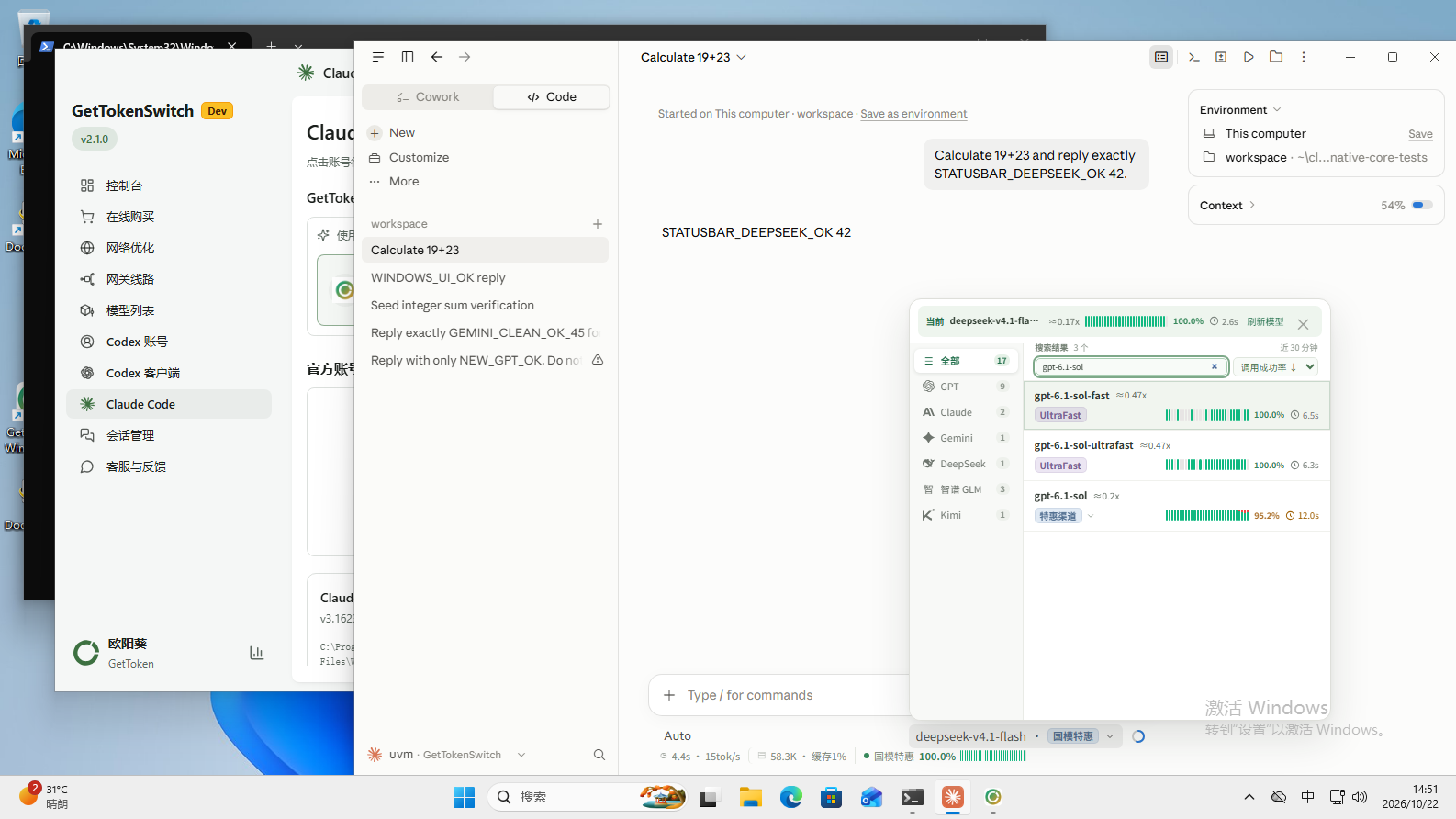
After fully refreshing or reopening Claude, reload enhancements from the manager if the status bar is missing. A running process alone does not confirm that the enhanced UI loaded.
Configure Claude Code CLI
The CLI runs in a terminal and is detected and configured separately from the desktop app. Skip this section if you only want the desktop app.
- Install the CLI using the official Claude Code instructions
- Open a new terminal and run
claude --versionto confirm installation - Go to Claude Code → More actions → Advanced settings. Under Apply to, enable Claude Code CLI; turn off the desktop target if you only want the CLI
- Check the connection source, select Apply Claude settings, and confirm the proposed changes
- End the old CLI session and start a new one from your project directory
From your project directory, run:
claudeSend a no-file-change test prompt first, then ask it to read the project. Use /help for commands supported by your installed version.
Desktop changes require a full quit and reopen. CLI changes apply to new sessions. Project configuration, existing shell settings, or organization policies can override the manager's settings.
Troubleshooting
Claude stays in ordinary chat or Cowork
Switch to Code, finish the first-run notices, and choose a project folder. Reopen the manager's guide to continue any pending setup steps.
The Claude status bar disappeared
Keep GetTokenSwitch running and reload enhancements through More actions. Complete any outstanding permissions or first-run prompts shown by the guide.
Desktop works, but the CLI did not change
Enable the CLI target in Advanced settings, apply and confirm, then start a new CLI session. Check project configuration, shell settings, and organization policies for overrides.
Can I follow this on Linux?
Linux manager packages are available on the download page; client availability depends on detection and platform support. Claude's desktop multi-provider enhancement is currently unavailable on Linux. Use the Claude Code CLI flow instead.